Frontline Safety Apps: Why the Mobile Keyboard Fails
When mobile safety apps require typing in work gloves, frontline crews take the fastest route to close the screen: single characters and default categories. The fix is a keyboard-free workflow—NFC tags, voice notes, and confirmation sliders—tested wet with the crew's actual gloves.

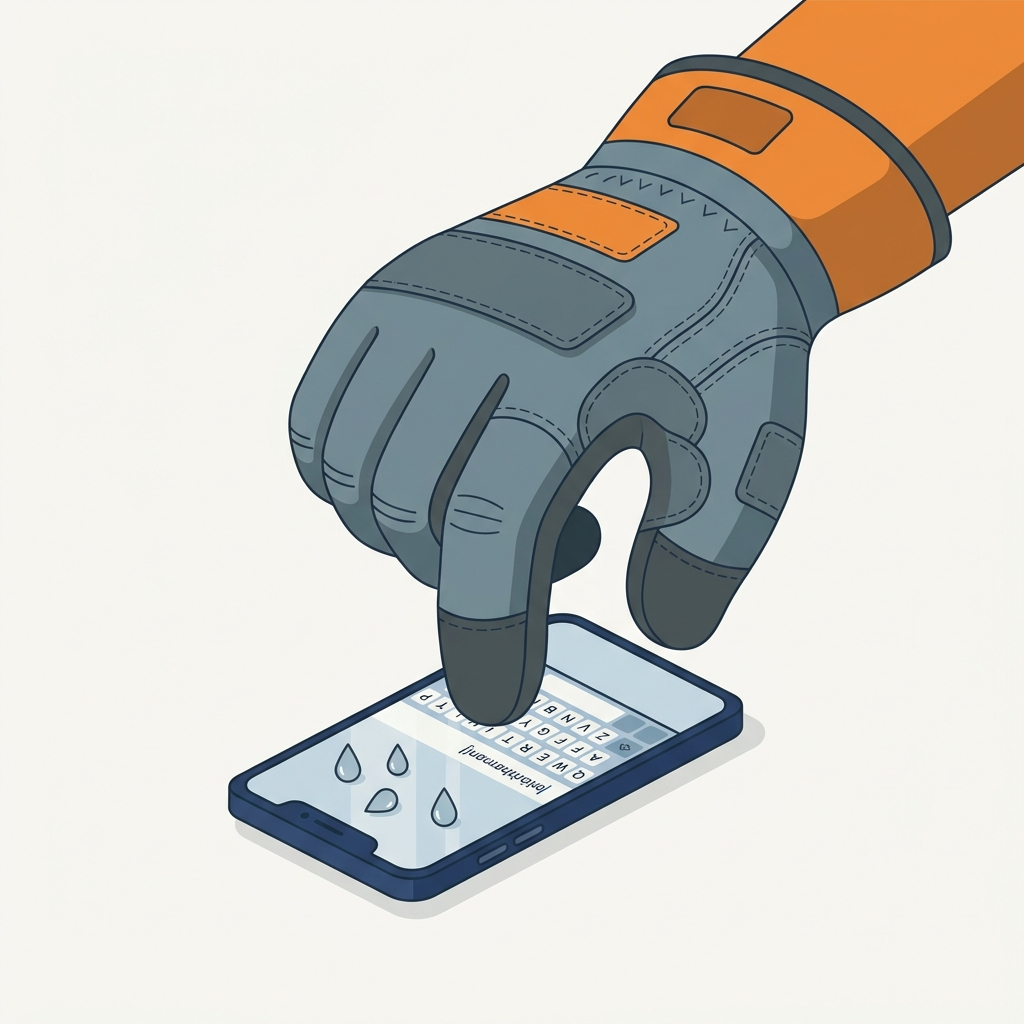
An operator wearing cut-resistant gloves stands outside in the rain, trying to log a leaking pipe on a mobile app. To submit the report, they have to hit small keyboard keys and tap tiny dropdown arrows. A gloved finger fails to register on the glass while water droplets trigger touches nobody made. To make the screen register, the operator pulls off the glove. The glove now has to go back on over a wet hand before they return to work—a step that is easy to skip when the job is waiting. Even with bare fingers, water drops on the glass scramble keystrokes and open the wrong menus. After thirty seconds of fighting the screen, they type a single period, pick the first item on the dropdown list, and put the phone away.
The dashboard will count a completed hazard report. Management will see a reporting rate that looks healthy. But the report is empty, because the interface required an action the conditions made impractical.
The failure in frontline safety software is usually treated as a behavioral problem—workers rushing or resisting new technology. It is a physical problem first: the form requires fine finger work that gloves and rain rule out.
The symptom shows up in your metrics: high participation rates masking hollow records. That is how fabricated safety data starts: not with a worker deciding to lie, but with an interface that cannot be completed honestly in the weather. The audit at the end of this article shows how to find both.
Why the Touchscreen Fails on Site
Modern touchscreens sense the small electrical charge a bare fingertip draws through the glass. When you hand a mobile form designed for an office to a worker outdoors, it runs into four physical problems:
| Field Constraint | Physical Mechanism | What Fails on Screen |
|---|---|---|
| Heavy Work Gloves | Standard cut-resistant or leather gloves block the charge the screen senses. Thin gloves with conductive fingertips can register; most heavy-duty work gloves do not. | The entire interface becomes unresponsive, forcing the worker to remove PPE to tap anything. |
| Water Droplets & Rain | Rain or spray from hosing down equipment draws electrical charge, mimicking fingers across the glass. | Single-tap buttons trigger accidentally, or the screen locks up to reject touches nobody made. |
| Gloved Contact Width | Where a conductive glove, or a screen in glove mode (a setting that raises touch sensitivity), does register, the gloved fingertip covers far more glass than a bare one. | Apple and Google set the smallest tappable area for a button at 7 to 8 millimeters, sized for bare fingers. Dropdown arrows and keyboard keys are often smaller. A gloved tap hits the button next to the one the worker meant. |
| Sunlight & Safety Glasses | Direct sunlight viewed through tinted or scratched safety glasses wipes out display contrast. | The pale outlines of text boxes, greyed-out buttons, and dropdown arrows wash out; workers tap blindly. |
Beyond the hardware barriers on the glass, the keyboard costs attention. If the operator reports where they stand, every second spent correcting a typo on an on-screen keyboard or scrolling through menus that open more menus is a second their eyes are off moving equipment, suspended loads, and active site hazards. If they step clear first, every second is a second the job waits—and the pressure to cut the report short grows.
Handing the crew an industrial tablet with a stylus does not fix this. It requires two hands: one to hold the tablet, one to hold the stylus. That leaves no hand free for a handrail or ladder, both tools slip in wet gloves, and the worker's eyes stay locked on an on-screen keyboard.
What It Does to the Record
When a form costs more effort than the worker can spare in the moment—their friction budget—they take the fastest path to close it. That survival behavior corrupts the safety record in three ways:
- Descriptions become filler. Someone at a desk made the text box mandatory to prevent blank reports. In the rain, with gloves on, "mandatory" does not produce descriptions; it produces single periods and
N/A. The blank report the rule was meant to stop now sits in your system looking complete. - Categories collapse into catch-all buckets. Faced with dozens of dropdown choices on a wet screen, workers pick the first alphabetical item or dump everything into "Other." When every rusted base plate and loose coupler lands in that same bucket, your leading indicators cannot warn you about an unstable scaffold until it falls.
- Timestamps disconnect from site conditions. To avoid fighting the phone outdoors, workers wait until shift-end to enter all their reports at once. The hazard that existed at 09:00 under freezing rain appears in the database as an observation logged at 16:30 from a warm break room, destroying any correlation with weather, shift handovers, or operating pace.
The record is corrupted at the point of capture. Management reviews dashboards full of timely, categorized reports, unaware that the data reflects how workers escaped the interface, not what happened on site.
The Design Rule: Nothing on the Phone Gets Typed
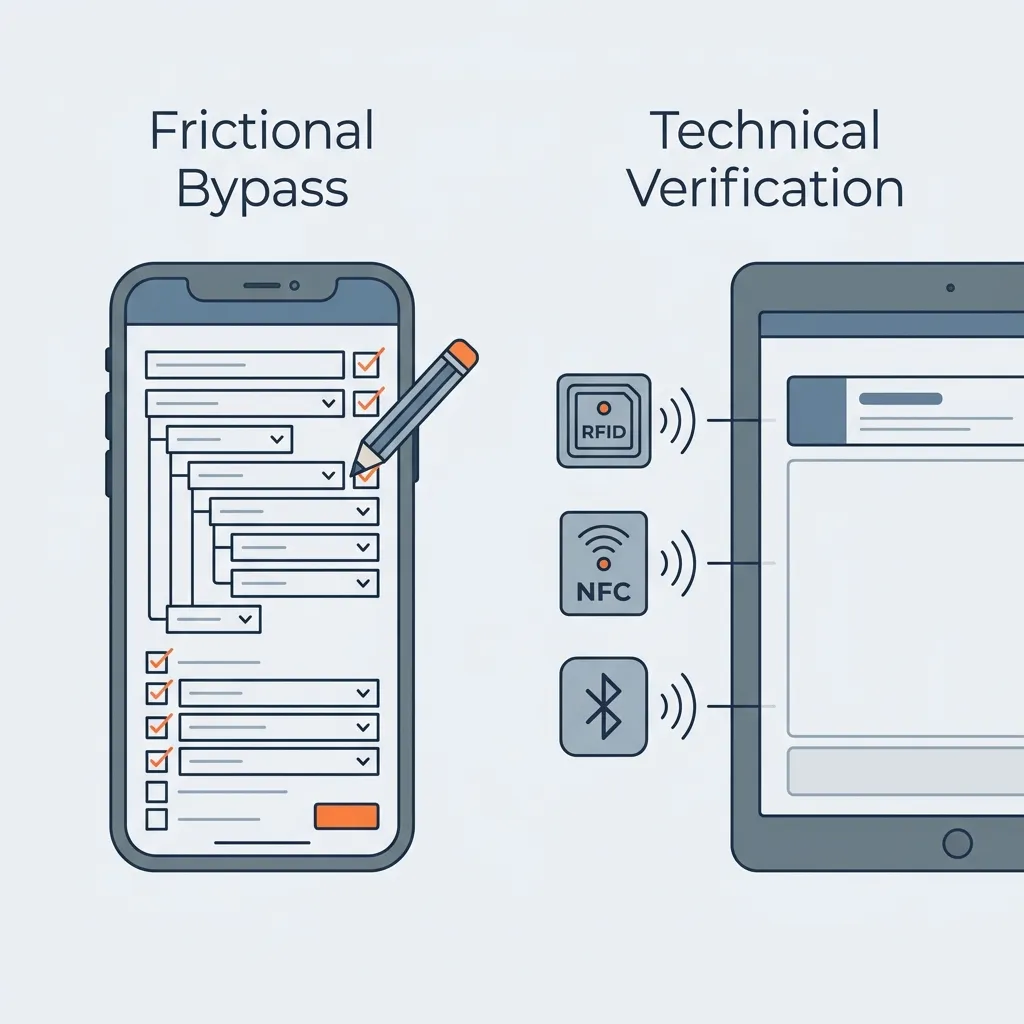
The phone never requires a worker to recall and type. Context (who, where, when) comes from the login already on the device or a badge scan, a tag scan, and the device clock. The tag is an NFC tag—a small chip the phone reads when held against it—or a high-contrast barcode. Hazard details (what you see, why it is unsafe) come from photos, voice notes, and large on-screen buttons.
Tag the places as well as the equipment. A slippery walkway or a blocked exit has no asset to scan, and GPS drifts indoors and cannot tell one floor from another. An area tag at each entrance or on the structural columns gives those hazards a location.
Hazard categories come from two sets of large on-screen tiles ("cards"). Scanning an equipment tag loads asset-contextual cards: for that asset type, such as a pump or a pressure vessel, the five ways it most often fails. Hazards with no asset go through an energy tree: the worker taps the energy source (Motion, Electrical, Gravity, Chemical and so on), then picks the specific condition from full-screen cards—two taps in all.
When an auditor or safety director asks for a written narrative, point to ISO 45001: its definition of documented information notes that it can be in any format and media, not typed text alone. A photo with a fixed aiming crosshair centered on the defect, paired with a voice memo stamped by both the device and the server clock, gives an investigator more actionable evidence than a rushed, typed sentence.
Where a formal narrative is required—an equipment work order, or an incident investigation report if the hazard later contributes to an injury—the voice memo gives the investigator the worker's exact words in their own voice. Back at a desktop during shift handoff, the supervisor can play the 10-second clip or generate a draft transcript on the server, writing the verified text into the work order rather than making workers edit words in the weather. The original audio recording stays locked in the hazard record.
• Timestamp 09:14 locked
• Audio & Photo spooled to sync queue
| Data Requirement | Legacy Keyboard Input | Keyboard-Free Design |
|---|---|---|
| Identity & Role | Typed username and password, or typed name with a role dropdown. | Personal phones: already logged in. Shared tablets: tap your site badge. Trade and role pull from the employee roster. |
| Location & Asset | Nested dropdowns (Site → Area → Equipment ID). | Tap an NFC tag or scan a barcode: on the machine for equipment hazards, on the doorway or building column for area hazards. |
| Time & Shift | Manual date/time picker plus shift dropdown. | Two timestamps: phone clock when captured, server clock when received. Shift is matched automatically from the site schedule. |
| Hazard Category | 50-item dropdown with nested sub-lists. | Two columns of large buttons (30+ mm wide). Five common ways that machine fails, plus a sixth button for the energy tree. Area hazards use the two-tap energy tree. |
| Description | Mandatory 250-character free-text area. | A photo with an aiming crosshair and an 8-second voice note, saved on the phone until synced. Transcribed automatically at the desktop. |
| Verification | Single-tap "Submit" button or tiny checkbox prone to accidental touch. | Full-width slide to confirm. Raindrops register as single taps; they cannot drag a slider across the screen. |
The Hardware: Wet Screens, Buttons, and PPE
Large buttons do not help if the screen cannot register the touch. Glove mode increases touch sensitivity, but higher sensitivity turns raindrops into false taps. Heavy leather and high-cut gloves fail anyway. If a screen cannot distinguish between water droplets and a gloved thumb, software design cannot save it.
If gloves fail to register, specify conductive fingertips—but only if they match the cut or chemical rating required by your risk assessment. Software must never downgrade personal protective equipment.
Specify enterprise devices with programmable hardware keys. Map one key to hold-to-record voice and another as the camera shutter. Snapping a photo with a physical button takes one press with gloves on; typing a description costs a removed glove. Evidence capture works even when water coats the glass.
Keyboard-free does not mean eyes-free. Scanning a tag, selecting a failure mode, and sliding to confirm still pull attention. The design compresses reporting time from two minutes to fifteen seconds; it does not remove visual distraction. Safe work procedures must instruct workers to step clear of mobile plant and line-of-fire hazards before pulling out the device.
Never use a software app for emergency dispatch. If a hazard poses imminent danger, safe work procedures require dropping the device and keying the two-way radio on your chest or pulling a manual alarm station. An in-app escalation button serves one purpose: Stop Work Authority. When tapped, it bypasses the form to display the supervisor's direct line. If the device is offline, it must immediately display the physical site fallback—radio channel and nearest call point—rather than leaving a worker waiting on a dead screen.
Where Keyboard-Free Design Breaks
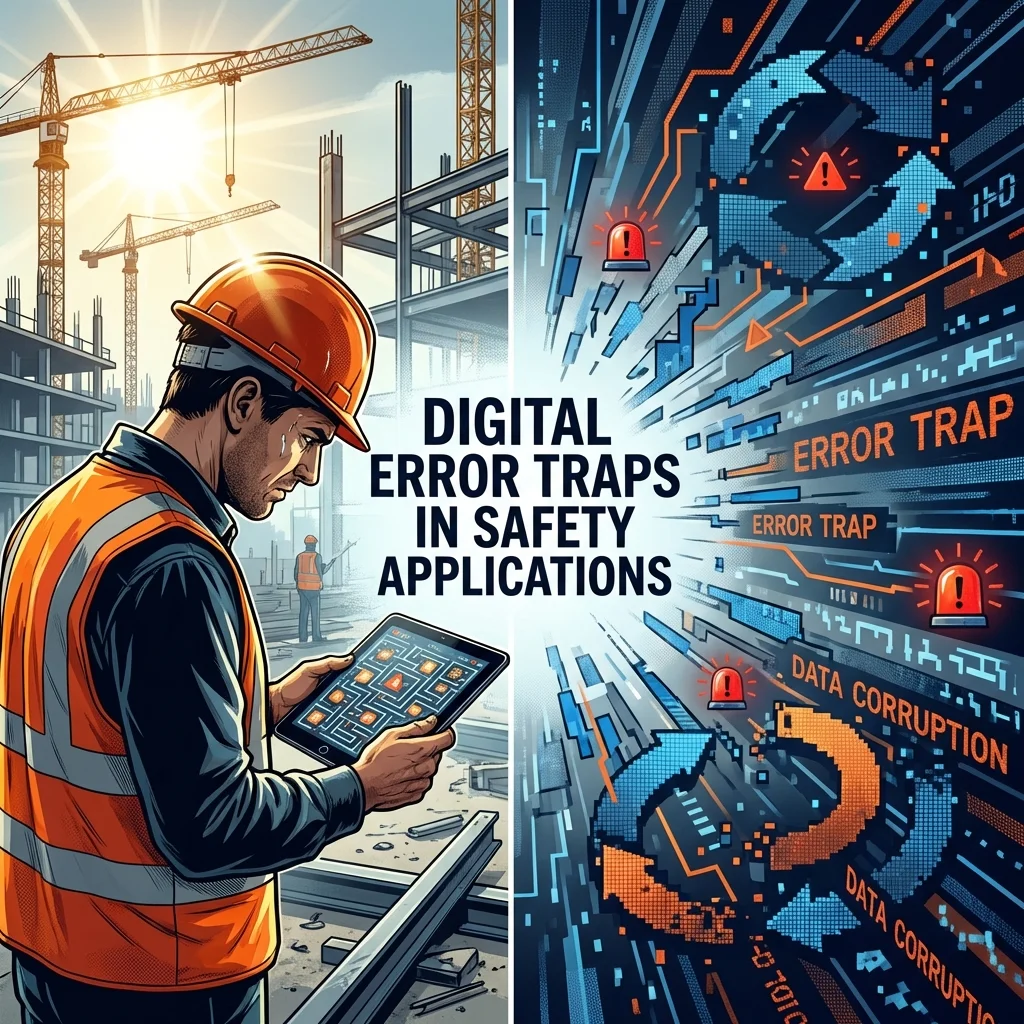
Replacing the keyboard with NFC tags, audio notes, and large buttons solves the physical friction of gloves and rain, but it introduces new digital error traps. Every component has a distinct failure mode:
- Tags Get Painted Over and Sheared Off: Physical tags rarely survive years of industrial traffic and sandblasting. When an NFC tag fails to scan, the app must not fall back to nested dropdowns or giant search tiles. Thirty identical pumps look the same on a screen. The fallback is a photo of the equipment nameplate: the worker captures it and submits, a supervisor links the record to the asset at shift handoff, and the missing tag is flagged for replacement.
- Ambient Plant Noise Distorts Audio: In process units running compressors, blowers, and steam lines, automated speech recognition fails. Never let software classify a hazard automatically from raw microphone input. Voice notes must remain supporting evidence, while the worker explicitly taps the failure mode on screen.
- Fixed Grids Create Meaningless Catch-Alls: A single grid of six buttons cannot represent an entire operating plant without forcing critical conditions into generic buckets like "Physical Hazard." Asset-specific failure modes and general energy hazards must link together. The five most common pump failure modes do not cover oil pooling on the walkway or an unguarded coupling; every asset screen must include a button that opens the energy tree.
- Unmarked Photos Create Guessing Games: A wide photo of an overhead pipe rack proves someone stood there, but leaves an investigator guessing which flange is leaking. The camera interface must lock an aiming crosshair in the center of the screen. Aiming the phone forces the worker to frame the exact defect before shooting; expecting someone wearing gloves to pinch, zoom, and drop a digital pin on an image afterwards fails immediately.
- Muscle Memory Turns Sliders into Digital Pencil-Whipping: A confirmation slider stops accidental taps from rain, but introduces the reflex swipe. When an operator repeats the same sequence checkpoint after checkpoint—scan tag, tap an option, swipe the slider—muscle memory takes over and they stop looking at the machine. Forced countdown timers prove only that time passed. To keep eyes on the equipment, require a photo of the gauge or component before the slider unlocks, backed by random supervisor audits.
- Uploading Photos Freezes Weak Connections: A text report is tiny. Add photos and voice notes across an inspection round, and files quickly add up to dozens of megabytes. On weak plant Wi-Fi or faint cell signals, trying to upload everything at once causes the app to time out, freezing the screen on a loading spinner. The app must send the core report details first—a tiny record that gets through on a single bar of signal—and upload the photos and voice notes in the background. The server logs the report immediately, attaching the media files whenever they land without altering the original capture time.
How to Audit Your App
Three tests: one with gloves, two in your existing hazard and observation data.
- The Field Test: Put on the gloves your crew actually wears, spray water on the screen, and log a hazard report outside. Time the scans and taps. The app fails if completion takes over 30 seconds, if you have to remove a glove, or if raindrops trigger touches nobody made.
- Check Where Categories Pile Up: Pivot your hazard records by category and submission channel (mobile app versus desktop). If "Other" or the first dropdown item dominates mobile reports compared to desktop entries by the same crew, workers are tapping whatever closes the screen fastest.
- Filter for Short Descriptions: Measure character length across mandatory text fields. If mobile reports consistently contain fewer than ten characters (
.,N/A,none,ok) while desktop entries contain complete sentences, the phone keyboard is degrading your data.
If your safety software forces a worker to choose between their gloves, their attention, and an accurate report, the system is defective. You may not build the software, but you write the procurement specifications. Refuse to buy any platform that simply shrinks a desktop web form onto a phone screen. Put the field test directly into the tender: the vendor's app on your devices, your crew's gloves, a wet screen, 30 seconds.